Comment partager un mot de passe en toute sécurité
Sans e-mail, Teams ni WhatsApp
Arrêtez de coller des mots de passe dans Microsoft Teams, WhatsApp ou les e-mails. Liens chiffrés à usage unique, RGPD et gestionnaire vs partage ponctuel.
À retenir
- Ne jamais envoyer de mots de passe par e-mail, SMS ou chat d’équipe.
- Utiliser un lien à usage unique chiffré dans le navigateur pour le transfert.
- Préférer des mots de passe temporaires et forcer une réinitialisation après accès.
- Confirmer l’identité du destinataire sur un canal séparé quand l’enjeu est élevé.
Partager un mot de passe semble une tâche mineure et quotidienne—jusqu’à ce que quelque chose tourne mal.
Qu’un collègue ait besoin d’un accès temporaire à un outil interne, qu’un agent du support client demande un accès système, ou que vous deviez envoyer les identifiants Wi-Fi à un visiteur, l’option la plus rapide consiste souvent à coller le mot de passe en clair dans un chat Microsoft Teams, un message WhatsApp ou un e-mail rapide.
Malheureusement, cette commodité laisse une trace numérique permanente. Une fois qu’un secret entre dans ces canaux, il est synchronisé sur les appareils, indexable via les fonctions de recherche, stocké dans les sauvegardes automatiques des boîtes mail et conservé indéfiniment dans les archives de messagerie d’entreprise. Un mot de passe censé être temporaire devient une responsabilité permanente.
Heureusement, il existe une meilleure façon de protéger vos identifiants.
Le problème central du partage en clair
Les applications d’e-mail et de chat sont d’excellentes plateformes de collaboration, mais elles n’ont jamais été conçues pour conserver des secrets. Si les systèmes modernes chiffrent généralement les données en transit, ils échouent sur l’éphémérité—garantir que les secrets disparaissent une fois leur rôle rempli.
Lorsque vous collez un mot de passe dans un fil de chat ou d’e-mail standard, vous perdez immédiatement le contrôle de son cycle de vie. Il reste stocké dans les boîtes mail, consultable dans les journaux de chat des années plus tard, et visible dans les notifications ou écrans de verrouillage. Si votre compte ou celui du destinataire est un jour compromis, ces historiques de chat en clair deviennent une mine d’or pour les attaquants.
RGPD (GDPR / DSGVO) et risques de conformité en Europe
Pour les organisations européennes, ce n’est pas seulement un enjeu de sécurité—c’est un risque de conformité. En vertu du Règlement général sur la protection des données (RGPD / GDPR / DSGVO), les entreprises sont légalement tenues de protéger l’accès aux données personnelles par des mesures techniques et organisationnelles de l’état de l’art.
Coller des identifiants actifs dans des journaux de chat cloud hébergés aux États-Unis ou sur des serveurs d’e-mail non chiffrés sans chiffrement de bout en bout dédié peut accroître l’exposition en matière de conformité, surtout si ces mots de passe donnent accès à des bases contenant des données clients ou employés.
Le chiffrement local côté navigateur réduit fortement les endroits où les identifiants peuvent persister, et aligne les échanges du quotidien sur une approche privacy-first. Ceci n’est pas un conseil juridique ; traitez le partage sécurisé d’identifiants comme un élément d’une politique plus large de contrôle d’accès, de gestion des mots de passe et de rotation.
Conseil haute sécurité : partage en canaux séparés
Un lien chiffré n’est aussi sûr que le canal utilisé pour l’envoyer. Si un tiers malveillant accède à votre boîte Teams ou e-mail, il pourrait intercepter le lien avant que votre destinataire ne l’ouvre.
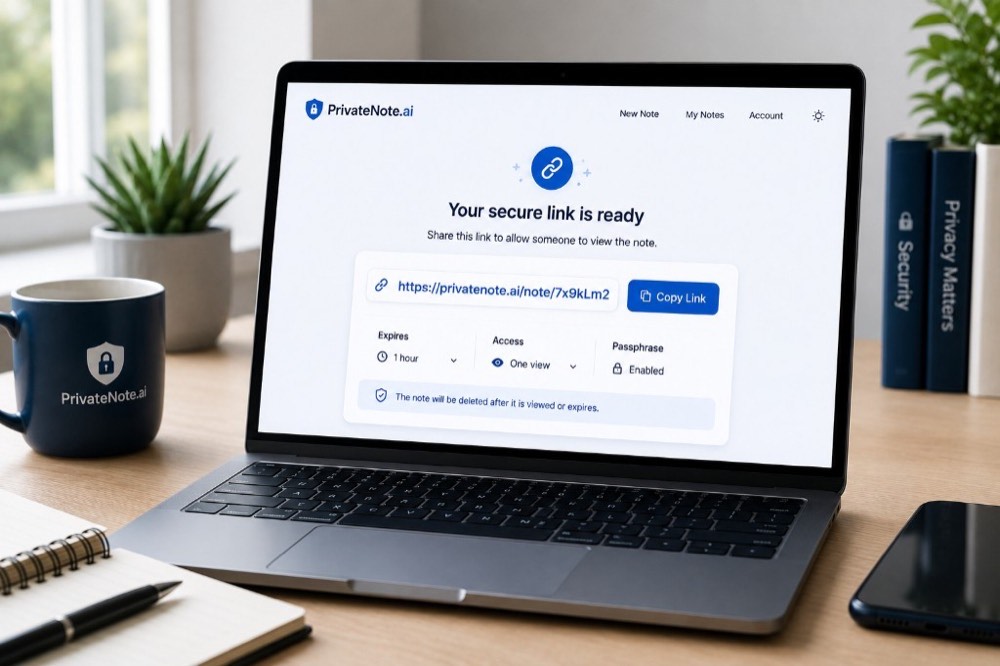
De nombreux outils de partage sécurisé—dont PrivateNote.ai—proposent une option pour envelopper la note d’un mot de passe supplémentaire (passphrase wrapping). Ce n’est pas activé par défaut : vous l’activez à la création de la note, choisissez une phrase secrète, et le destinataire doit la saisir avant que le secret ne soit révélé.
Pour éviter un point unique de défaillance (SPoF) pour des identifiants très sensibles, utilisez cette option pour un partage en canaux séparés : générez le lien chiffré avec protection par phrase secrète, envoyez le lien via votre canal principal (par exemple Microsoft Teams), et envoyez la phrase secrète par un canal entièrement différent—de préférence un messager axé sur la vie privée comme Signal ou Threema, ou un court appel téléphonique.
Un attaquant aurait besoin à la fois du lien et de la phrase secrète. C’est cette séparation qui rend le partage en canaux séparés efficace.
Partage via gestionnaire de mots de passe vs. liens à usage unique
Les deux méthodes peuvent être très sécurisées, mais elles servent des objectifs différents. Le bon outil dépend de la durée d’accès dont le destinataire a besoin.
| Catégorie | Idéal pour | Limitations techniques |
|---|---|---|
| E-mail, Teams ou WhatsApp | Non recommandé pour les mots de passe | Laisse des copies en clair permanentes et consultables dans les sauvegardes et archives |
| Gestionnaires de mots de passe | Accès continu : partage de coffres avec la famille, des services internes ou des équipes de confiance | Les deux parties doivent maintenir des comptes de gestionnaire de mots de passe actifs et compatibles |
| Liens chiffrés à usage unique | Accès temporaire : freelances, support client, visiteurs et transmissions ponctuelles | Quiconque dispose du lien peut lire le secret sauf protection par une phrase secrète secondaire |
En règle générale : utilisez un gestionnaire de mots de passe pour un accès partagé durable, et un lien chiffré à usage unique lorsque l’identifiant doit changer peu après la transmission.
Quand utiliser un lien de mot de passe à usage unique
Le partage de mots de passe à usage unique convient aux identifiants transactionnels qui n’ont besoin d’être communiqués qu’une seule fois. Exemples courants en milieu professionnel européen :
| Service | Cas d’usage courants |
|---|---|
| Administration & bureau | Mots de passe routeur ou Wi-Fi invité, identifiants admin d’imprimante, ou paramètres de bureau intelligent |
| Finance & business | Identifiants pour votre expert-comptable ou auditeurs financiers externes |
| IT & opérations | Onboarding de prestataires IT externes temporaires, ou partage de connexions contractuelles temporaires |
| Équipes techniques | Identifiants de base de données, clés API, clés SSH ou mots de passe de plateformes cloud avec les développeurs |
Bonnes pratiques et pièges à éviter
Imposer la rotation
Chaque fois que vous partagez un mot de passe, traitez-le comme temporaire. Demandez au destinataire de le changer dès la connexion, et confirmez que la rotation est terminée avant de considérer la transmission comme achevée.
Générer des mots de passe forts et locaux
N’inventez pas vos mots de passe vous-même. Utilisez un outil local comme le générateur de mots de passe PrivateNote, ou passwords.lu pour les options de phrase secrète et de PIN. Les deux s’exécutent localement—rien n’est téléversé. Pour le modèle technique, voir How We Generate Secure Passwords.
Garder des délais d’expiration courts
La plupart des mots de passe n’ont besoin d’exister que quelques minutes ou heures. Préférez une vue unique ou une courte fenêtre comme deux heures lorsque cela convient encore au workflow du destinataire.
Ne pas mettre de mots de passe dans les titres ou objets
Ne placez jamais de mots de passe en clair dans les objets d’e-mail, titres de tickets, noms de canaux Teams, titres de groupes WhatsApp, noms de documents ou invitations calendrier. Ces champs sont rarement traités avec le même soin que le corps des messages—et ils persistent dans les index de recherche.
Garder le contexte hors de la note sécurisée
Si vous partagez un mot de passe de base de données, n’écrivez pas « Mot de passe de la base pour le CRM de production : MySecret123 ! » dans la note. Mettez uniquement le secret brut dans le lien chiffré. Si le lien est intercepté, l’attaquant ne devrait pas aussi apprendre quel compte ou système il déverrouille.
Erreur courante
Envoyer à la fois le lien chiffré et sa phrase secrète dans le même message Teams, chat WhatsApp ou e-mail annule le partage en canaux séparés et recrée un point unique de défaillance.
Questions fréquemment posées
Microsoft Teams ou WhatsApp sont-ils plus sûrs que l’e-mail ?
Leurs protocoles de transmission sont généralement sécurisés, mais ils fonctionnent toujours comme des archives de chat à long terme. Tout mot de passe collé dans un fil peut rester consultable indéfiniment, ce qui en fait une vulnérabilité persistante.
Le RGPD (GDPR / DSGVO) influe-t-il sur la façon dont je partage les mots de passe ?
En vertu de l’article 32 du RGPD, les organisations doivent mettre en œuvre des mesures techniques et organisationnelles appropriées pour sécuriser les données personnelles. Stocker des mots de passe en clair dans des sauvegardes cloud ou des chaînes d’e-mail ouvertes augmente l’exposition en conformité. Les liens zero-knowledge à auto-destruction réduisent l’empreinte des identifiants.
Dois-je envoyer le lien et la phrase secrète ensemble ?
Non. Envoyer les deux éléments dans le même message annule le partage en canaux séparés. Envoyez la phrase secrète par un autre moyen—de préférence Signal ou Threema, ou un appel téléphonique.
Gestionnaire de mots de passe ou lien à usage unique ?
Utilisez un gestionnaire de mots de passe pour un accès partagé à long terme. Utilisez un lien à usage unique chiffré dans le navigateur lorsque vous n’avez besoin de communiquer un mot de passe qu’une seule fois.
Ai-je encore besoin d’un gestionnaire de mots de passe ?
Oui. Les gestionnaires de mots de passe restent le bon endroit pour stocker et gérer les identifiants que vous conservez. Les liens chiffrés à usage unique les complètent pour des transmissions temporaires et contrôlées.
Conclusion
Le partage sécurisé de mots de passe n’a pas à freiner votre workflow. Il suffit d’un petit changement d’habitude : cesser de laisser des données sensibles reposer en permanence dans les journaux de chat et l’historique des boîtes de réception.
En utilisant le chiffrement local côté navigateur et des liens à auto-destruction, vous réduisez le risque de sécurité et de conformité organisationnel tout en gardant des transmissions rapides et pratiques.
La prochaine fois que vous devez partager un mot de passe, évitez de le coller dans Microsoft Teams, WhatsApp ou un e-mail. Créez une note chiffrée à usage unique, envoyez le lien plutôt que le mot de passe, et laissez la note expirer une fois son rôle rempli.
Prêt à partager en toute sécurité ?
Créez une note privée sur PrivateNote.ai pour chiffrer les identifiants dans votre navigateur avant l’envoi. Les notes peuvent expirer automatiquement ou après lecture, la protection optionnelle par phrase secrète ajoute une couche supplémentaire, et les données de notes chiffrées sont traitées sous juridiction de l’UE.
Créer une note privée