How to Make a Private Note
And actually keep it private
A lock icon in a notes app is not the same as a truly private note. Learn what digital privacy actually means, which structural settings matter, and how to create an encrypted note that disappears after it is read—without ever creating an account.
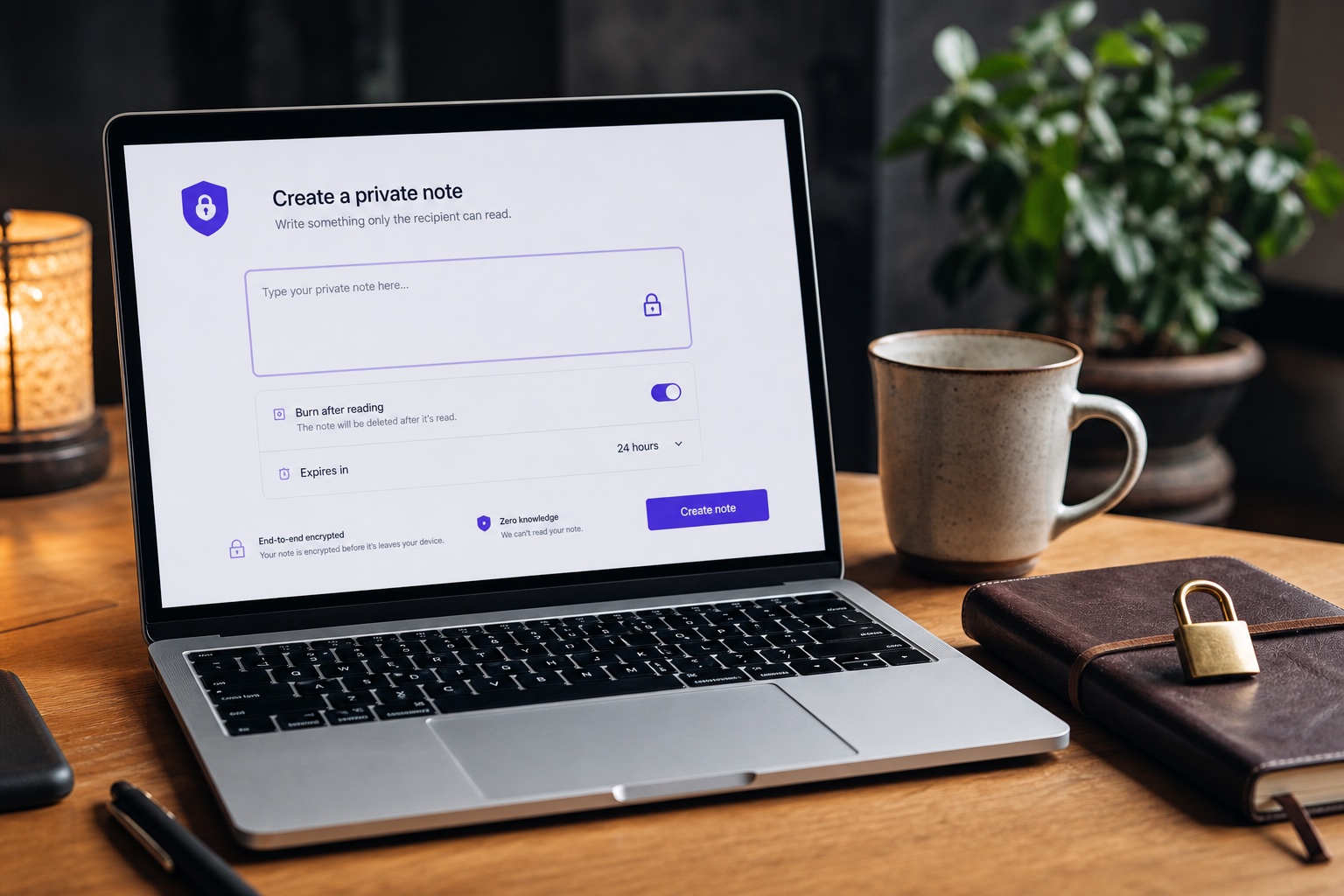
Key takeaways
- Encrypt in the browser before anything is uploaded.
- Set expiry and view limits that match the handoff.
- Share the link carefully—possession is access.
- Do not paste the same secret into a permanent channel afterward.
You want to write something sensitive—a password, a recovery code, a confidential message, or a personal note—and keep it private. Maybe you searched for "how to make a note private" and found generic advice about locking an app, hiding a local folder, or toggling a device privacy setting.
Those steps help with casual, over-the-shoulder privacy. They do not solve the harder problem: sharing a note with another person without leaving a permanent, searchable copy sitting on a third-party server.
A truly private note requires three distinct pillars: encryption before upload, tight access control, and planned ephemerality—a mechanism to disappear. Here is how to achieve that in practice.
What "private" actually means
In everyday applications, "private" usually means hidden from other physical people picking up your device, protected by a phone passcode, or locked behind a premium app subscription. That is highly useful—but it is not the same as cryptographic privacy.
When you share sensitive information across the web, the real question is: who can read the note after it leaves your hands?
Can the service provider read it? Can an unauthorized party who gains access to a cloud backup read it? Can a future teammate search old chat histories and find it months later?
A private note, in the strict security sense, is one where only the intended recipient can read the contents, the hosting service never sees the underlying plaintext, and the note does not live online forever.
Why regular note apps fall short
Apple Notes, Google Keep, Notion, and Evernote are excellent tools for personal organization, but they are generally the wrong choice for distributing one-time secrets due to several inherent traits:
- Sync and backups — Your note is silently copied across multiple devices, cloud storage accounts, and long-term history archives you do not directly control.
- Search and sharing — Accidental public sharing, broad workspace searches, or a single compromised account can expose historical notes months after the fact.
- Provider access — Unless the app explicitly offers end-to-end encryption for that specific note, the provider retains the technical ability to read your content on their servers.
- No burn-after-reading — Most organizational apps are structurally engineered to store information indefinitely, not to purge it after a single read.
For long-term personal journaling, standard notes apps are ideal. For passwords, recovery codes, and confidential handoffs, you need an ephemeral tool built for one-time secret delivery—not permanent storage.
How to make a private note: step by step
You do not need to register an account to send a secure, one-time private note. The structured workflow below outlines what browser-encrypted services are designed to execute securely.
Step 1
Draft the message inside your browser
Open PrivateNote and type your message directly. Already in another tab? The Chrome extension encrypts selected text in place—the same client-side flow, without opening the site first. Avoid pasting the raw secret into standard email clients or unencrypted text threads beforehand. You can also use Write with Private AI to draft locally on your device before encryption.
Step 2
Configure your ephemeral privacy settings
Set an expiration window that fits the task. Enable burn-after-reading if the note should completely vanish after the first successful open, and add an optional passphrase for highly sensitive content.
Step 3
Let the browser execute local encryption
When you click create, encryption happens entirely client-side. Only ciphertext is uploaded. The decryption key remains embedded in the URL fragment—the portion following `#`—which modern web browsers do not transmit to hosting web servers.
Step 4
Isolate your sharing channels
Transmit the generated secure link to your recipient through your preferred channel. If you configured a manual password, share that out-of-band—via a phone call, Signal, or securely in person.
Step 5
Confirm delivery and clear local state
Use optional delivery notifications to verify when the note was successfully opened or expired. Once consumed, no lingering plaintext copy remains sitting in your outbox or historical chat logs.
Privacy settings worth turning on
Small architectural adjustments yield massive security gains. When creating an ephemeral note, maximize your defenses by utilizing these configurations:
- Burn-after-reading — The gold standard for passwords and credentials. The underlying ciphertext is wiped from the server the moment it is successfully read once.
- Short expiration windows — If your recipient does not need to open the data instantly, limit the exposure window to hours or days—never leave it open-ended.
- Layered passwords — Adds a crucial second factor. An attacker would need to compromise both the link transport channel and obtain the separate password to read the contents.
What not to put in a web-based private note
Browser-encrypted links are outstanding for temporary or replaceable secrets—such as Wi‑Fi credentials, API tokens, and corporate messages. They have limits.
Critical safety rule: Never type a cryptocurrency seed phrase, master hardware wallet backup, or root private key into any website. Irreplaceable master assets justify local terminal-based encryption with age or OpenSSL before transmission. For that architecture, read crypto seed phrases and one-time links.
When a private note is the right tool
Reach for a dedicated private note instead of standard email or chat tools when handing off sensitive information:
| Data type | Ideal sharing scenario |
|---|---|
| Credentials | Passing a password or recovery code to a trusted family member or colleague. |
| Access keys | Distributing an API key or webhook signing secret during developer onboarding. |
| Physical access | Sharing temporary door codes, alarm PIN numbers, or guest Wi‑Fi credentials. |
| Corporate communications | Sending a confidential business message that should not be indexed by enterprise chat or email archives. |
Our philosophy at PrivateNote
We engineered PrivateNote to shift the trust balance back to the user. By handling cryptographic operations entirely inside your browser before the payload hits our infrastructure, our servers remain structurally blind to your plaintext secrets.
We also believe in clear transparency regarding product limitations. If you are sending a temporary access token to a peer, an encrypted one-time link is an outstanding tool. If you are dealing with your life savings, encrypt locally on an offline machine first.
Security is not about finding a magic, one-size-fits-all tool. It is about matching your workflow to the value of what you are protecting. For the technical model behind browser encryption, read how PrivateNote works and what client-side end-to-end encryption means.
Create a private note now
No account required. Write your note, configure your privacy settings, and share a secure link in under a minute.
Need to share documents too? Secure file transfer uses the same browser-side encryption model. Sending requires a free account; recipients can open links without signing up.
Use PrivateNote often? The Chrome extension adds encrypt-and-share to your toolbar or right-click menu—handy when a password or API key shows up mid-conversation.
Encrypt first. Share a link. Let it expire.
Create New Note